
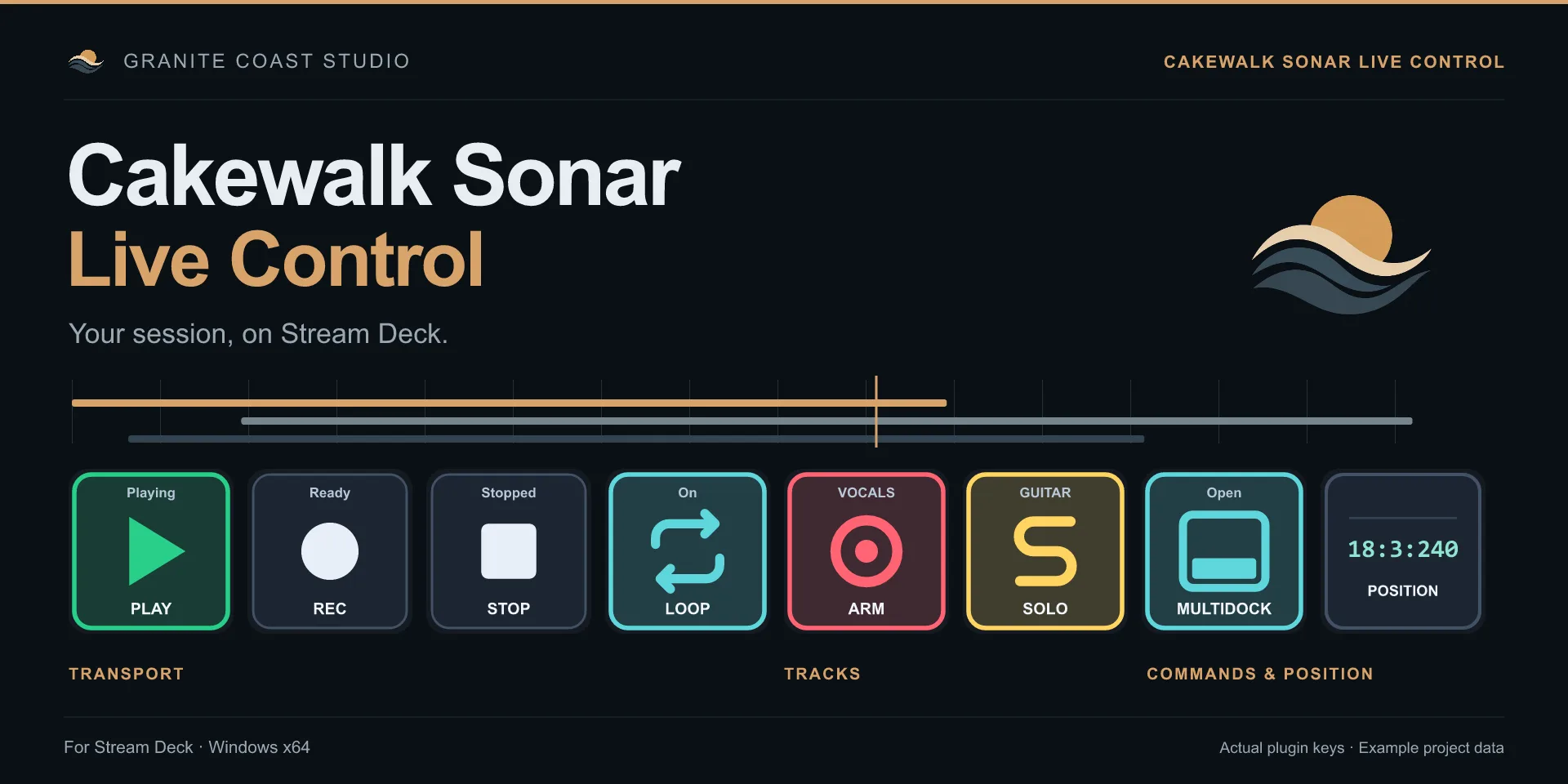
A Stream Deck can run Cakewalk Sonar in three ways. You can send keyboard shortcuts, route MIDI through a virtual driver into one of Sonar’s control surfaces, or install a plugin that talks to Sonar directly. The first two cost little or nothing. The third is the only one where the keys show what Sonar is actually doing.
Which one fits depends on how much you record, and how often you look at the deck instead of the screen.
What a Sonar deck should do
Before choosing a method, it helps to list the jobs. For most home studios they look like this:
- Start, stop, record and loop without reaching for the mouse.
- Arm, mute and solo tracks while you play an instrument.
- Open the views and commands you use every session, such as Console View or MultiDock.
- See the state at a glance. Is it recording? Is the loop on? Which track is armed?
The last point is where the methods split. A key that says Record but has no idea whether Sonar is recording is a button. A key that turns red when Sonar records is a control surface.
Option 1: keyboard shortcuts
The Stream Deck app can send any key combination. Sonar has shortcuts for transport and many commands, and you can add your own under Preferences, Customization, Keyboard Shortcuts.
It works, and it is free. It also has two limits you will hit quickly.
- Sonar must have keyboard focus. If a plugin window, a browser or a chat app has focus, the shortcut goes there instead.
- Nothing comes back. The keys never change. You have to look at Sonar to know if it is playing, recording or looping.
Shortcuts suit a three-key setup for Play, Stop and Save. They don’t suit tracking a band.
Option 2: a MIDI bridge into a Sonar control surface
Sonar can be controlled over MIDI through its control surface plugins, such as ACT MIDI Controller or Cakewalk Generic Surface. To use them with a Stream Deck, you install a virtual MIDI driver like loopMIDI, add a Stream Deck plugin that sends MIDI messages, and map each key to a note or CC in Sonar.
This gets around the focus problem, because MIDI reaches Sonar even when another window is in front. The cost is the setup.
- One extra driver that has to start with Windows.
- A MIDI plugin on the Stream Deck, and a note or CC chosen for every key.
- A mapping in Sonar that has to match those numbers.
- Feedback to the keys needs a second mapping in the other direction, and the MIDI plugin has to support it.
If you already own a MIDI controller and know Sonar’s surface settings well, this is a reasonable path. If you just want keys that work, it is a lot of plumbing.
Option 3: a dedicated Sonar plugin
Cakewalk Sonar Live Control is a Stream Deck plugin built for Sonar. It is enabled once as a control surface in Sonar, and from then on the connection starts by itself. There is no virtual MIDI driver, no MIDI port to pick and no per-key mapping.
What it covers in version 1.0.0:
- Transport with state. Play, Pause, Stop, Record and Loop keys show Sonar’s real transport state. Hold Rewind or Fast forward to shuttle, and let go to stop.
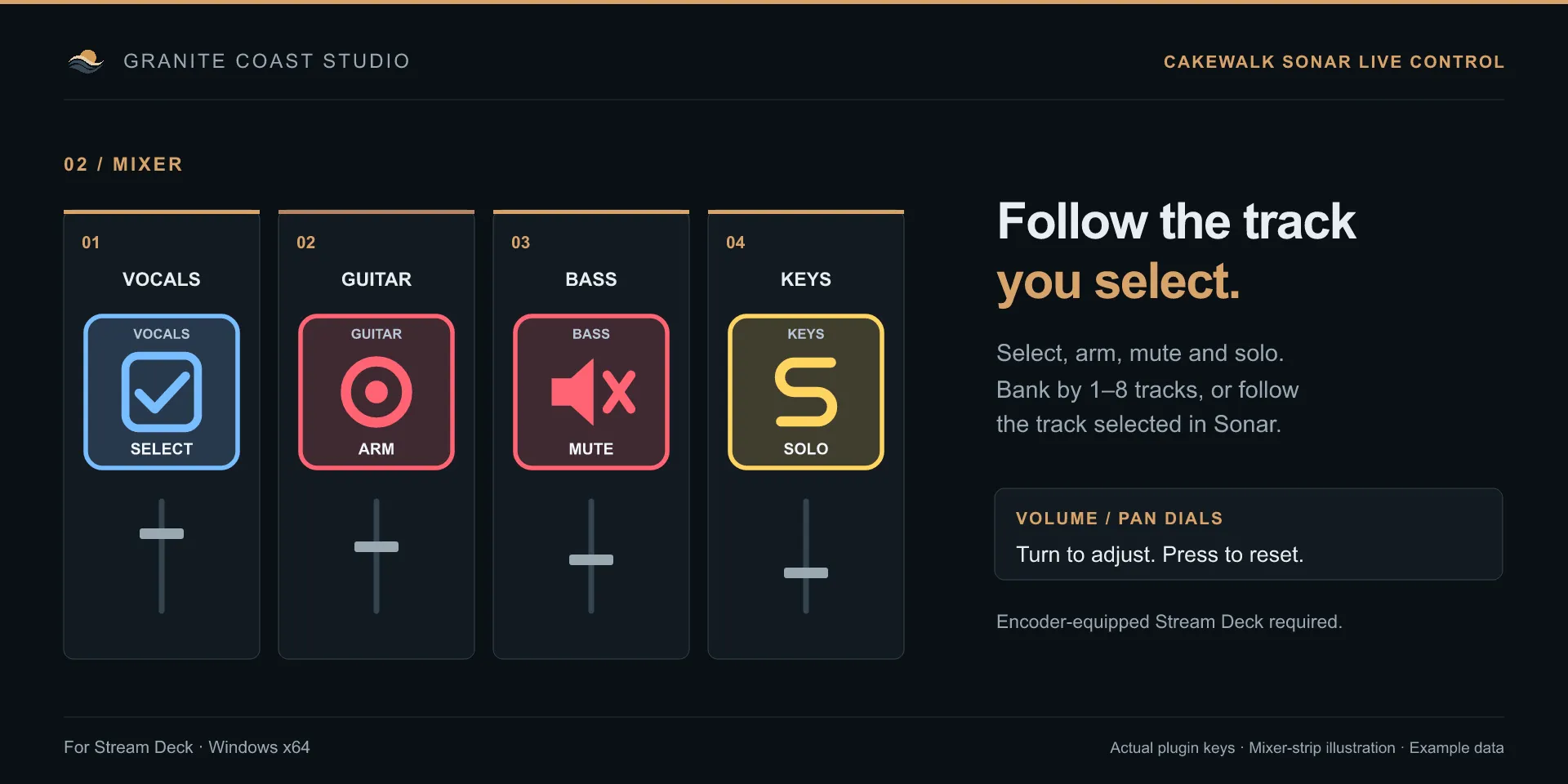
- Tracks. Select, arm, mute and solo, with the track name on the key. Work in banks of 1 to 8 tracks, or point a key at whichever track is selected in Sonar.
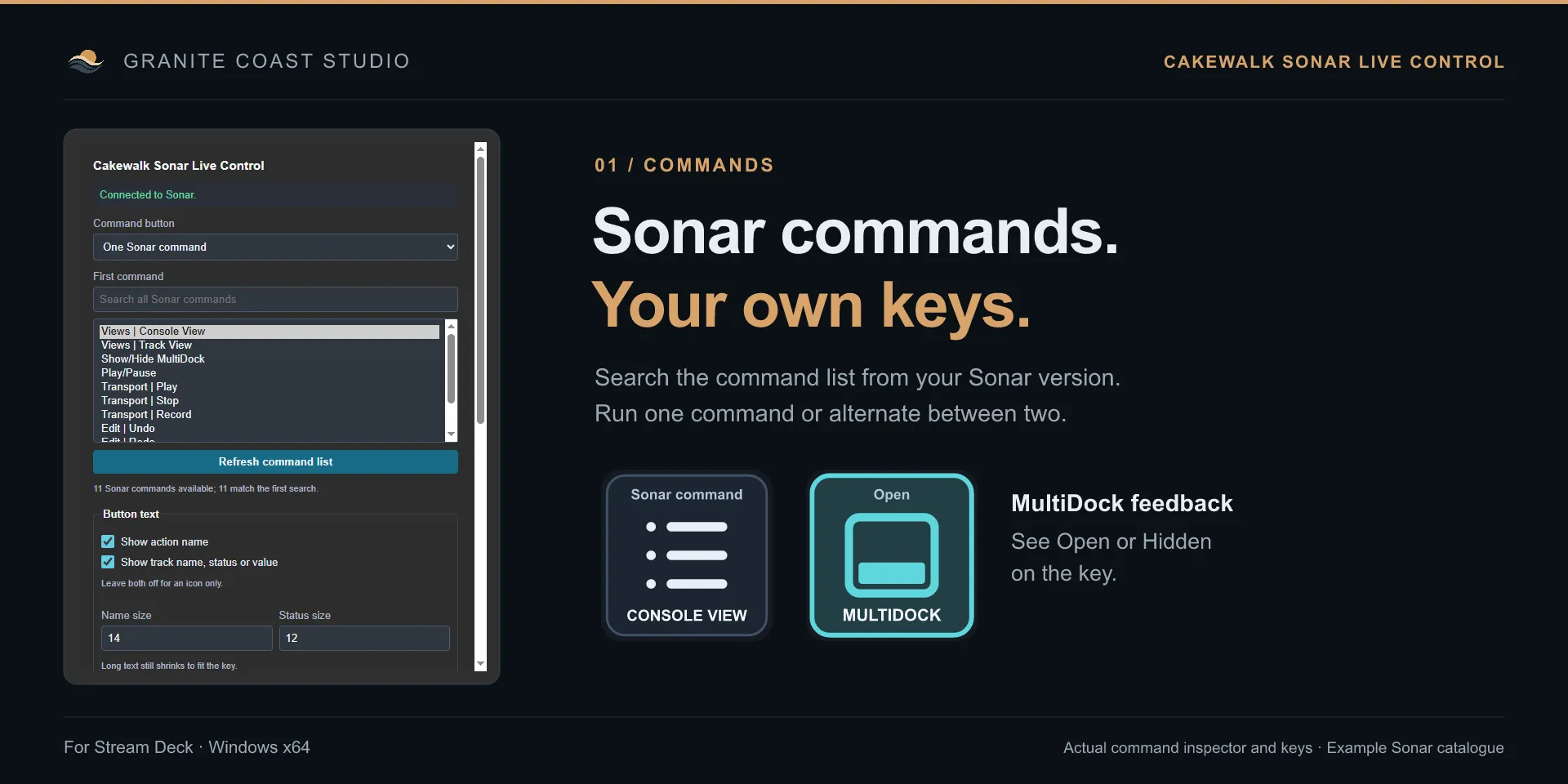
- Commands. The command list comes from the Sonar version you have installed. Search it in the key settings and assign any command. A key can also alternate between two commands, or show and hide MultiDock and display whether it is open.
- Dials. On a Stream Deck with dials, such as Stream Deck +, turn to set track volume or pan. The touch strip shows the track name and Sonar’s own value text. Press to reset to 0 dB or center.
- Position. A key can show the song position as measures, beats and ticks, or as elapsed time.
Setup takes three steps. Install the plugin from the Elgato Marketplace. In Sonar, open Preferences, then Control Surfaces, and add Cakewalk Sonar Live Control with both MIDI ports left unassigned. Drag actions onto the deck. Their settings show Connected to Sonar when it works.
There are limits worth knowing before you buy. It runs on Windows 11, 64-bit, with Stream Deck 6.9 or later. Version 1.0.0 controls tracks, not a separate master or bus bank. It does not insert FX or VST plugins, and it does not show BPM or time signature. The price on the Elgato Marketplace is 15 EUR.
Side by side
| Shortcuts | MIDI bridge | Sonar Live Control | |
|---|---|---|---|
| Works without Sonar in focus | No | Yes | Yes |
| Keys show Sonar’s state | No | Only with extra mapping | Yes |
| Track names on keys | No | No | Yes |
| Extra drivers | None | Virtual MIDI driver | None |
| Per-key setup | A shortcut per key | A note or CC per key | Pick from a list |
| Volume and pan on dials | No | With mapping | Yes |
| Cost | Free | Free | 15 EUR |
A layout to start with
On a 15-key Stream Deck MK.2, this layout covers a typical recording session:
- Top row: Play, Record, Stop, Loop, song position.
- Middle row: Arm for tracks 1 to 4, and a MultiDock key.
- Bottom row: Solo for tracks 1 to 4, and an Undo command.
Bank the track keys when you move past track 4. If you own a Stream Deck +, put volume and pan for the selected track on the dials, so the track you click in Sonar is always the one under your hand.
The keys can use the built-in icons, your own PNGs, or the Music Production Icon Pack if you want transport and track icons that match across your profiles.
Which one should you pick?
- You only want Play and Stop: keyboard shortcuts are enough.
- You already run a MIDI controller through ACT and like mapping: the MIDI bridge reuses what you know.
- You record yourself and want to see the session state on the deck: Cakewalk Sonar Live Control is the option built for that, and it is the shortest setup of the three.